View on GitHub
 Testing Reference
Testing
The following test protocol was used to check that everything worked as expected, and all test elements were passed.
Show Test Protocol
Checking: Insulin Entry.
Method: Type in an insulin dose and a time.
result: green dot appears on the graph clicking on this dot yields a pop-up containing the number of units.
Checking: Working Settings.
Method: Click on the settings button and then toggle the switch entitled ‘Basal rate’. Return to the app to observe the result.
Result: Redirects you to an iOS settings menu containing a switch entitled ‘basal rate’. After toggling this, the presence of the grey line on the graph will toggle.
Checking: Data plotting
Method: Since there is no real data present yet this is just testing that some plotting mechanism is working so simply look at the graph to observe the line
Result: A blue line which at some point becomes a dotted red line to indicate prediction. It is worth noting that at this stage the prediction line takes over at an arbitrary point instead of the current time.
Checking: Bifocal Time travel
Method: Firstly, to check that it works trivially swipe back to the previous few days and confirm that the graph on the bifocal, the food list and the exercise lists all change. To check it works properly take a screenshot of the app on one day and then on the next swipe back to that day and confirm that the lists and graph contain the actual correct information from this day.
Result: The graph should change to show previous day’s data and the food and exercise tables should change to show previous day’s activities.
Checking: Date Selection
Method: Click on the date above the bifocal display to trigger a date picker from which you can select any date and go straight there. Select one of these dates and trivially check that the graph, food and exercise tables change. Now go to a date by scrolling through the bifocal and make a note of the content of the tables, then go to the same date using the data selector and check that they are the same.
Result: It correctly takes you to the selected date with the graph and tables for that day.
Checking: Food Entry (from scratch)
Method: Enter a food name, time and amount of carbs, protein and fat and click add. Then Click on the it’s cell to expand it and click on the newly appeared orange dot on the bifocal display
Result: The food should appear in the table with all information the same as what you entered. Clicking on the orange dot should produce a pop-up with accurate information in it.
Checking: Exercise Tag
Method: Assuming no exercise has been added for today so far go into the health domain and find today’s date in the table to confirm that the exercise icon is grey
Result: The exercise icon should be grey
Checking: Exercise Entry (from scratch)
Method: Follow the same process as for food, but in the exercise domain and clicking on the blue dot on the bifocal instead of the orange. There is also no need to try and click to expand the cell. Go into the health domain again and find today’s date.
Result: The same result as for food but for the new information entered. Confirm that today’s exercise icon has turned green in the health domain.
Checking: Adding Food to Favourites
Method: Click on the star next to any meal in the food table such that it highlights orange. Then click on the orange star above the add button in the top right corner.
Result: The meal you starred is now in the list
Checking: Removing Food from Favourites
Method: Click on a star such that it turns grey. Then click on the orange star above the add button in the top right corner
Result: This meal is no longer in the list.
Checking: Adding and Removing Exercise from Favourites
Method: Do the same thing as for food but in the exercise domain
Result: The same as for food.
Checking: Food Entry (from favourites)
Method: Go to the favourites list by clicking on the orange star above the add button. Click on any of the meals. Click the add button as if you were entering a normal meal.
Result: When clicked upon the fields at the top should have been auto-filled with the information about that meal. When add is clicked that meal should join the food daily table.
Checking: Exercise Entry (from favourites)
Method: The same as food entry from favourites but in the exercise domain.
Result: The same as food entry from favourites but in the exercise domain.
Checking: Tag switches
Method: Go into the health domain and if they are ‘on’ (i.e. green) turn them off and wait until tomorrow to test this feature. If they are off scroll down to today’s date in the table of days and confirm that the stress and illness indicators are grey for today. Turn the switches on and off again (off again for ease of future testing). Scroll down to find today’s date in the table and see if the stress and illness symbols are highlighted green.
Result: The stress and illness symbols for today are green when previously they were grey
Checking: Hypo/hyper detection
Method: Scroll to a day on the bifocal where a hyper occurred (i.e. the blue line goes above 10 and into the top peach zone) and then look at that day in the days table in the health domain. Do the same to find a day where a hypo occurred (blue line goes below 4 and into the bottom peach zone) and check in the health domain. It may be worth repeating this process with multiple days.
Result: The down arrow will be highlighted green to indicate a hypo and the up arrow to indicate a hyper, so on days where you’ve identified either of these things happening the relevant arrow should be green.
Checking: 60 Days in list
Method: Click on the 60 Days button and scroll to the oldest date in the list
Result: The oldest date should be 60 days ago, however, currently there aren’t 60 day’s worth of data as the project is younger than that so just confirm that there are more days here than for 30 days for now.
Checking: 30 and 7 Days in List
Method: Now click on the 30 days and 7 days buttons
Result: Confirm that the oldest dates were 30 and 7 days ago respectively.
Checking: Tag filters
Method: Click on each of the tag filters (e.g. hypo) in turn and then try every combination of filters
Result: Every row should have the selected tag filters corresponding icon green
Checking: Links to days
Method: Click on a row in the days table in the health domain to expand it. Then click on the view button. Repeat the process with multiple days to thoroughly confirm correct operation.
Result: The date at the top of the bifocal display should be the same as the date you clicked on in health
Checking: Favouriting days
Method: Still in the days table in the health domain, click on the star next to any of the rows (it should turn green) to add it to favourites. Then click on the green star in the top right to bring up the list of favourites to confirm it is present. Then click on the view button and perform the links to day’s test described above. Test with multiple days for confirmation.
Result: The day will now be present in the favourites list and clicking on the view button should yield the result described in the links to days test.
Checking: Expanding Advice
Method: Go into the advice domain and click on the plus arrow next to the advice suggestion provided
Result: A second row should appear with the text ‘try eating a larger breakfast’
Confirmation of successful core data persistence
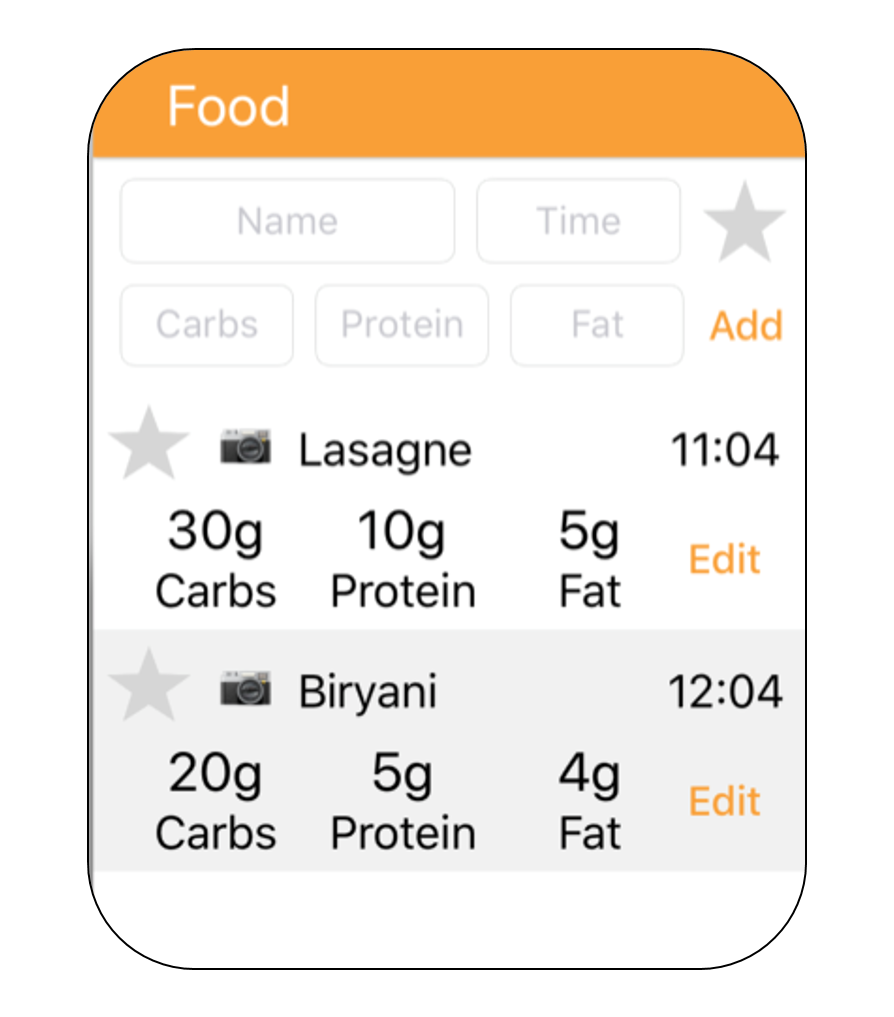
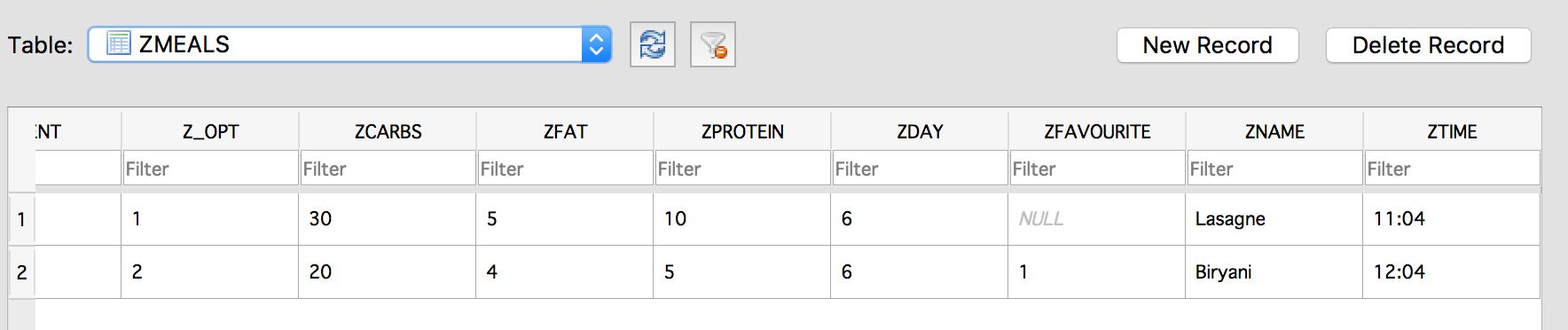
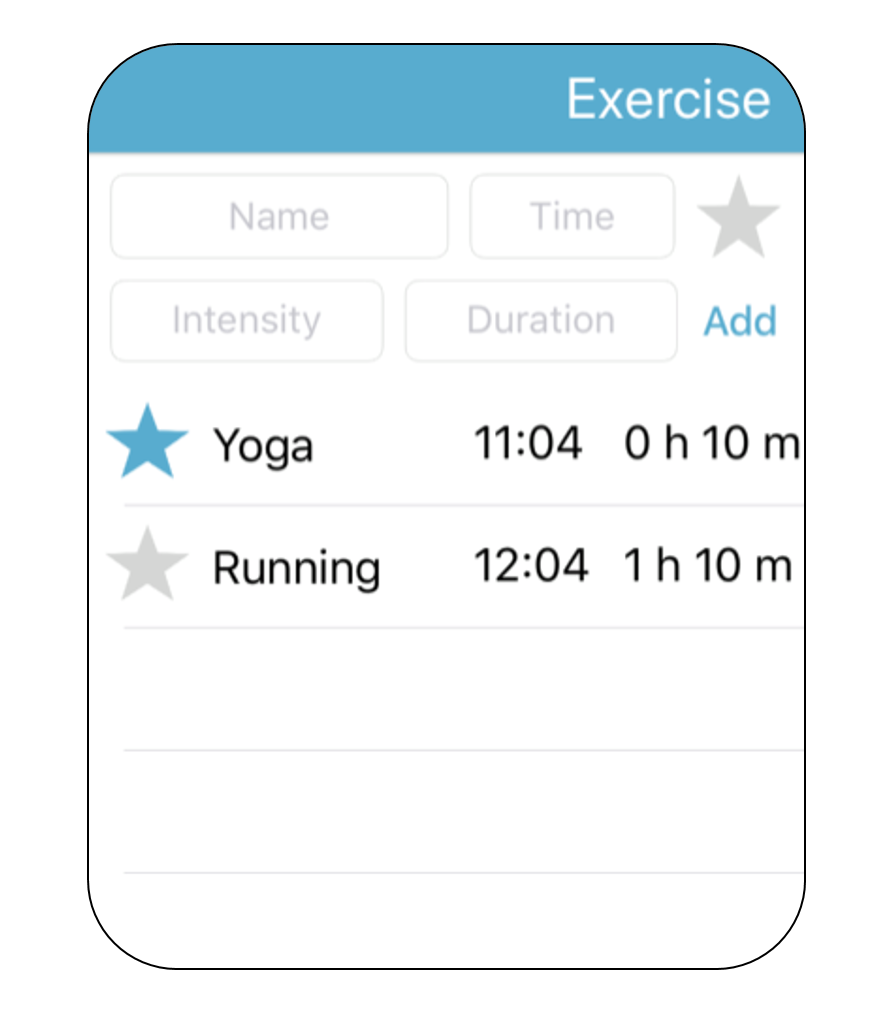
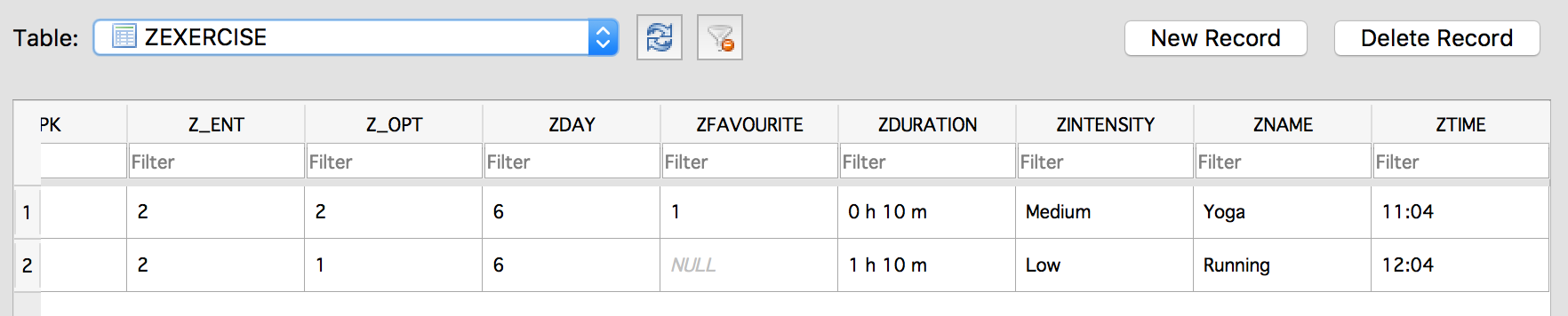
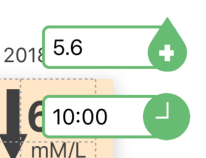
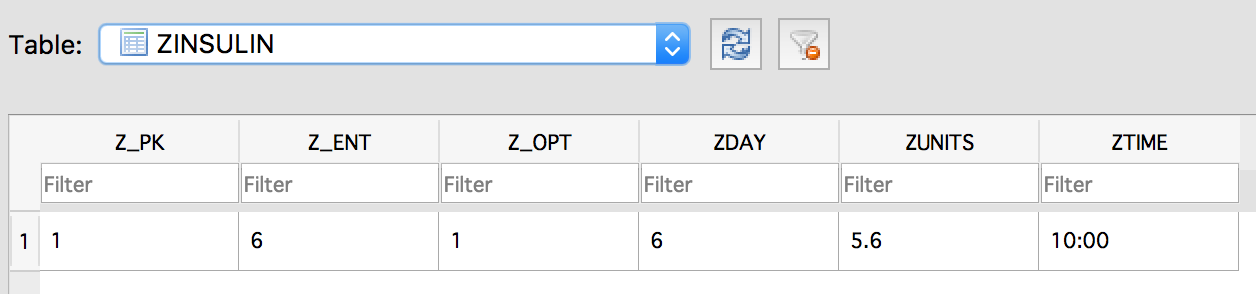
Meals, exercise activities, days, insulin doses, stress, illness and favourited items are all entities in a core database where all the user data is stored. For the case of meals, exercise and insulin, data was entered into the relevant fields and the core database was examined to check all data entered had been appropriately stored here. The table below shows screenshots of the database (which can be viewed in the development environment) and corresponding data logs for food, exercise and insulin as evidence of correct operation.
| Data Log | Record in Database |
|---|---|
 |
 |
 |
 |
 |
 |
The illness and stress tags create a record when they are turned on which ends when they are turned off. The start and end times (ZSTART and ZEND) are stored in unix time which is the number of seconds since the 1st of January 1970 and the start and end days are recorded. The screenshots below show correct operation of the illness and the stress entities.
Illness

Stress
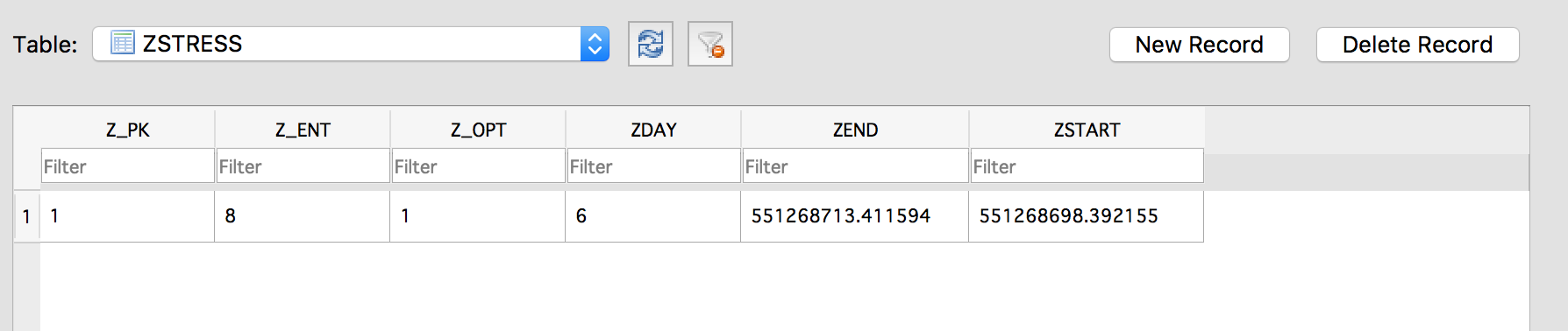
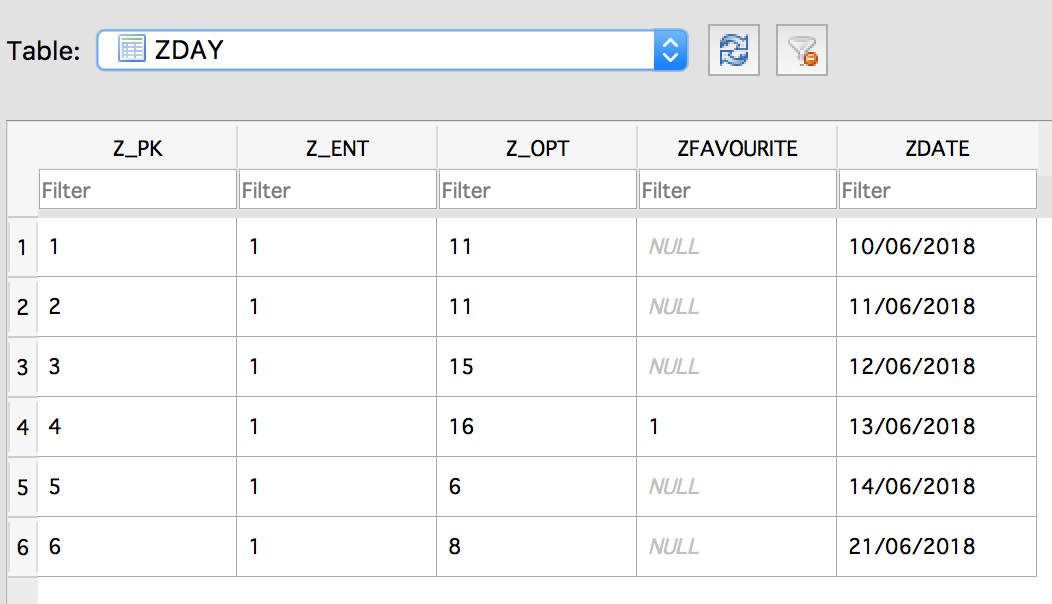
All the entities shown above have a relationship to the Day entity, so the ZDAY column contains the index of the appriopriate entry in the Day entity stored within the same database. In all the cases shown above the day is 6, as this testing was carried out on the sixth day since the app was last deleted and re-installed on the phone, which confirms proper relational operation. Below is a screenshot of the day entries to confirm they are being stored and linked to favourites - all other attributes relevant to days are accessed from its relationship to the other entries described above.